Resetting Cisco Jabber v11.0+
September 15, 2016 |
Category: Cisco Jabber
If you are experiencing connection issues or login errors, resetting Cisco Jabber is often the first step in troubleshooting. Follow the instructions below for your specific operating system.
Windows Instructions
-
Open Jabber without signing in.
(If Jabber signs in automatically, sign out first.) - Below the Sign In button, select Reset Jabber.
-
Confirm the message asking if you want to reset Jabber.
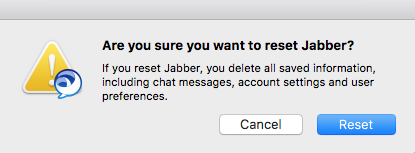
- Select Reset.
-
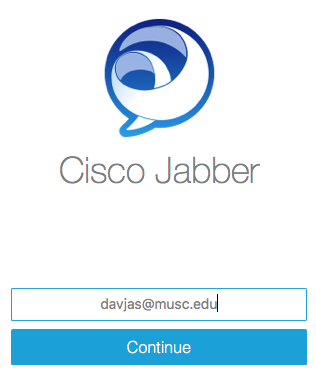
Enter your email address and select Continue.
-
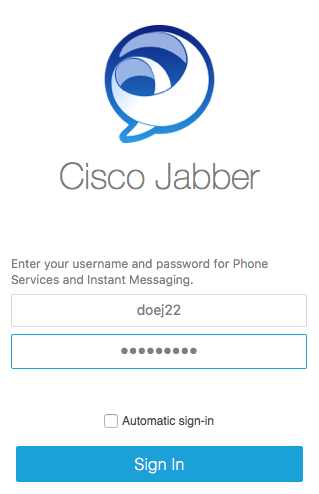
Enter your Username / NetID and Password, then select Sign In.
Mac Instructions
-
Open Jabber without signing in.
(Sign out first if auto-logged in.) - Below the Sign In button, select Reset Jabber.
-
Confirm the reset when prompted.
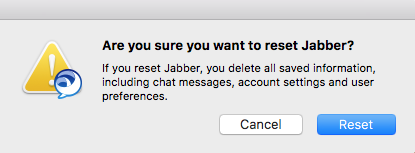
- Select Reset.
- Enter your email address and select Continue.
- Enter your Username / NetID and Password, then select Sign In.
Pro Tip: Resetting Jabber clears local cache and configuration files but does not delete your contacts or chat history, which are stored on the server.